
This blog explain how to scrape web data using wso2 data services web harvesting feature. In this tutorial I am going to extract Top rated books from Top Rated Books - Book Movement web page along with their authors and expose those data as a data service.
Before I begin lets look at how scraping works.
When you scrape a web page you need to identify the html/xml pattern. If we look at Top Rated Books - Book Movement page you can see list of books are listed along with their details. Now if we look at the page source we can see several html tags are repeated in the same manner.
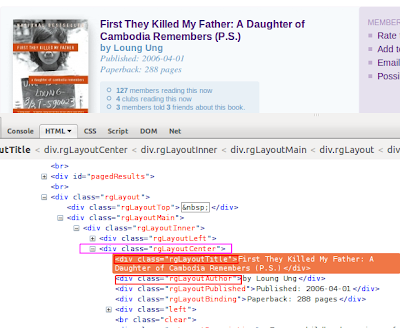
If you look at it closely you can see a wrapper element which is
<div class=”rgLayoutCenter”>
and inside that wrapper element you have some thing like this.
<div class="rgLayoutTitle">First They Killed My Father: A Daughter of Cambodia Remembers (P.S.)</div><div class="rgLayoutAuthor">by Loung Ung</div>
Now our basic requirement is to extract all the books along with their authors. To do that we need to find the pattern of the book title as wel as the author.
<div class="rgLayoutTitle">First They Killed My Father: A Daughter of Cambodia Remembers (P.S.)</div><div class="rgLayoutAuthor">by Loung Ung</div>
we can easily write an xslt template to extract these information
<?xml version="1.0" encoding="ISO-8859-1"?>
<xsl:stylesheet version="1.0" xmlns:xsl="http://www.w3.org/1999/XSL/Transform">
<xsl:output method="xml" omit-xml-declaration="yes" indent="yes"/>
<xsl:template match="/">
<BookInfo>
<xsl:for-each select="//div[@class='rgLayoutCenter']">
<Book>
<Title><xsl:value-of select="div[@class='rgLayoutTitle']"/></Title>
<Author><xsl:value-of select="div[@class='rgLayoutAuthor']"/></Author>
</Book>
</xsl:for-each>
</BookInfo>
</xsl:template>
</xsl:stylesheet>
Above xslt template describe to go inside each
<div class=”rgLayoutCenter”>element and extract value of
<div class="rgLayoutTitle">and
<div class="rgLayoutAuthor">and assign it to the XML elements Title and Author inside the wrapper Book element.
Creating the web harvest data service
Now we learnt the basic concepts on web scraping/web harvesting, we will straight away create the data services using WSO2 Data services server.
To install WSO2 data services download and unzip the zip file and go to $DS_HOME/bin and start up the server from the command prompt, run bin/wso2server.bat{sh}
When the server startup is complete, access http://localhost:9443/carbon in your browser. Sign in to the server using the default credentials (username=admin, password=admin) in the right hand side corner. It will redirect you to the management console page.
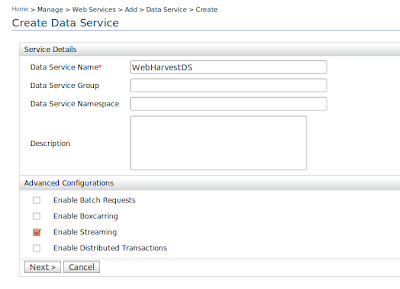
To create the data service click on create in the left hand side menu under Web Services -> Add -> Create
Once you click on it you will have to fill the data service information as shown below. Lets name our data service as WebHarvestDS.
Once you click on next you will be redirected to create data-source page click on add new datasource to add our web datasource.
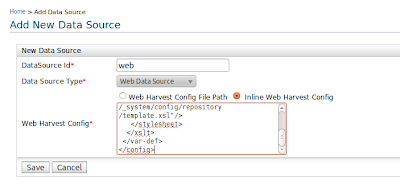
For the web datasource you need to have a configuration file along with the web scraping url, the scraperVariable and the HTTP method to extract data.
Also we need to provide our template.xslt file location we wrote earlier.
<?xml version="1.0" encoding="UTF-8"?><config>
<var-def name='bookInfo'>
<xslt>
<xml>
<html-to-xml>
<http method='get' url='http://www.bookmovement.com/app/readingguide/memberRecommendations.php'/>
</html-to-xml>
</xml>
<stylesheet>
<file path="/media/ntfs/web/template.xsl"/>
</stylesheet>
</xslt>
</var-def>
</config>
Place the above configuration file inside the inline configuration section (or you can save the above configuration in your local machine and give it as a web harvest config file path)
Lets give our scraper variable as bookInfo and HTTP method as get and also our template location.
 Creating the Query
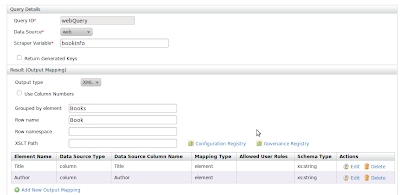
Click on next to add a query. Give a queryId, scraper variable as webQuery and bookInfo.
To populate the data properly we need to give the group by element and row-name. This is to tell the web service how our result format should be. We also need to give output mapping to arrange our extracted data.
Query information.
- QueryId – webQuery
- Data Source – web
- Scraper Variable-bookInfo
- Grouped by element – Books
- Row name – Book
output mappings
- Element – Title
- Element – Author
Click on Next to add operation and select the query name and give a name to our operation.
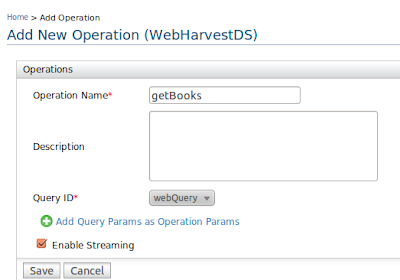
Click on finish to finish creating the data service. Go to webservices list and you can see our webservice is successfully deployed.

You can invoke the service using the try-it tool.
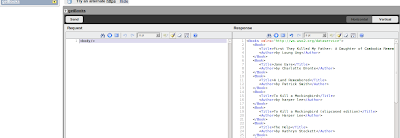 You can also invoke the data service using a rest call by simply typing http://localhost:9763/services/WebScraping/getBooks/ on ur browser.
